
Membership guide
How to become a member
Joining takes about five minutes. This guide shows each step of the membership form, with a picture of what you will see on the screen.
Before you start, have ready:
- An email address you can open
- Your date of birth (you must be 18 or over)
- Your town or postcode
- A recent passport-style photo of yourself (a clear phone photo is fine)
Applying for an organisation? Also have its official name, its charity or company number if it has one, and the name of the person who will represent it.
-
Step 1
Open the membership form
Click Membership Form at the top of any page. On a phone, tap Menu first, then Membership Form. You can also use the green button on this page.
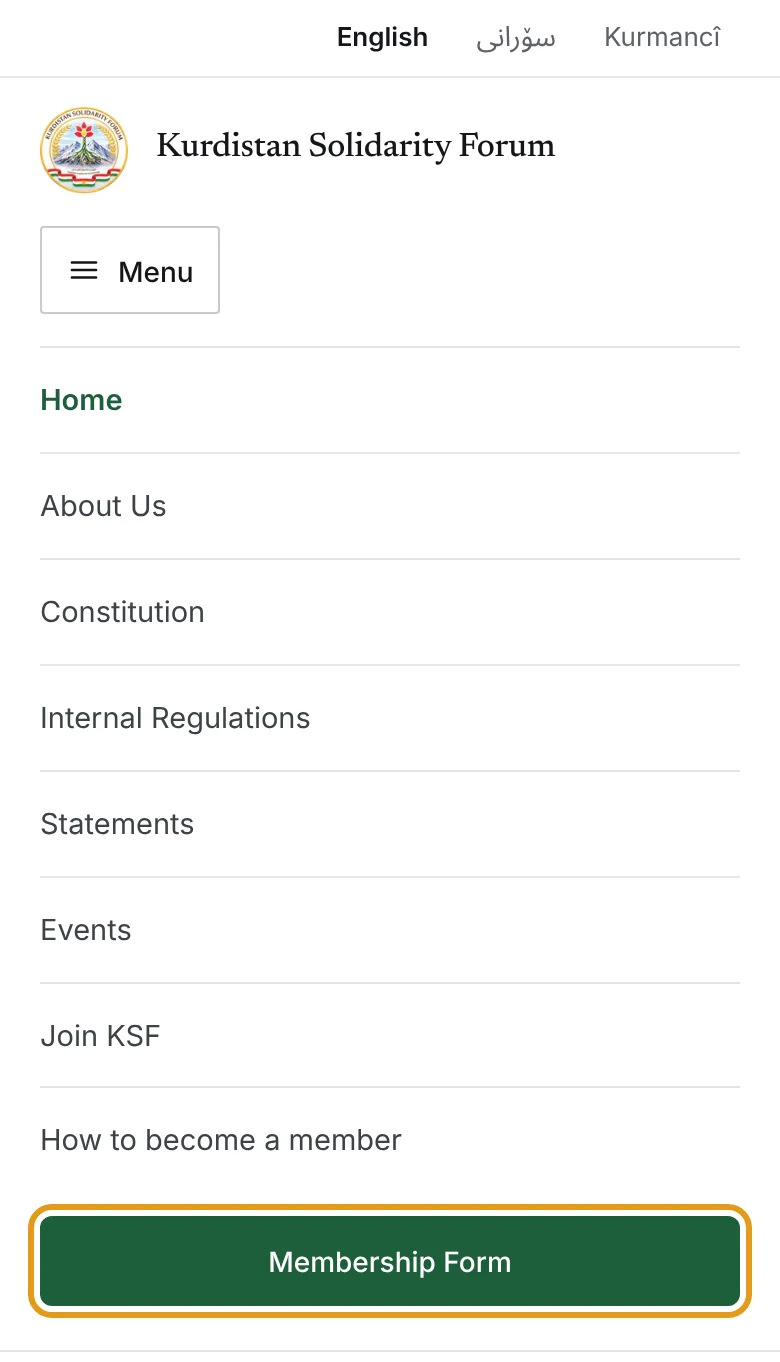
Example on a phone -
Step 2
Choose who is joining
Tap Individual if you are joining as yourself. Tap Organisation if you are applying for a group, charity or company. The form changes to show the right questions.
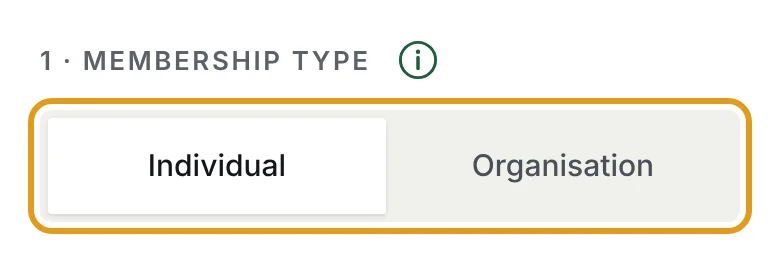
Example on a phone -
Step 3
Fill in your details
Type your full name, date of birth, email address and town or postcode, then add a passport-style photo of yourself. Not sure what to write? Tap the next to any question to see an explanation.
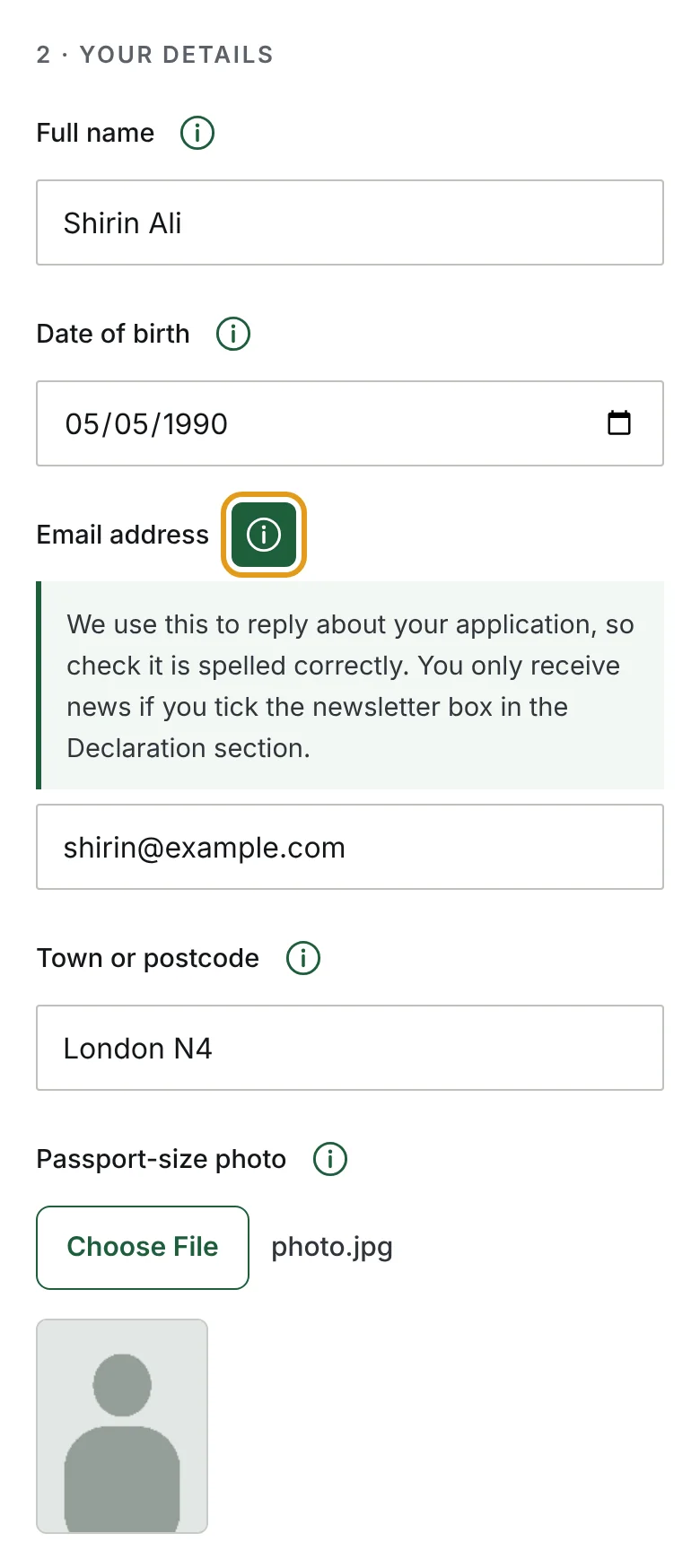
Example on a phone -
Step 4
Choose how you would like to help
Tick any areas that interest you. This step is optional and does not commit you to anything. You can skip it.
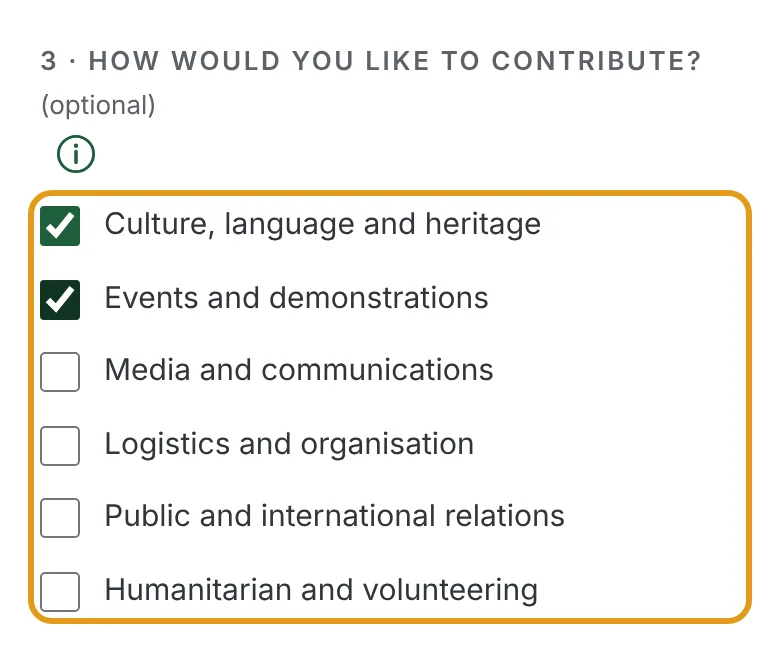
Example on a phone -
Step 5
Read and tick the declaration
Tick the first three boxes to confirm that you are 18 or over, that you agree to our Constitution and Internal Regulations, and that you have read the Privacy Policy. The last box, for news by email, is optional.
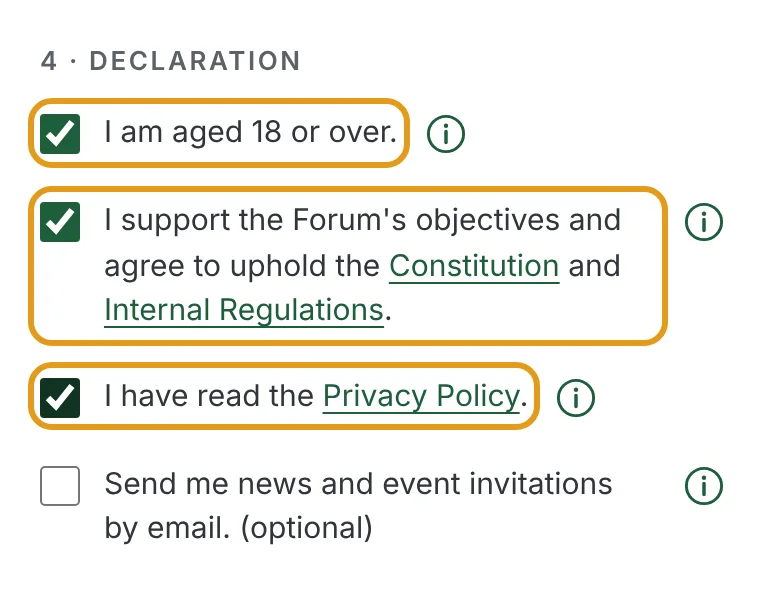
Example on a phone -
Step 6
Send your application
Press Submit application once. If something is missing, the form shows you which question to fix.
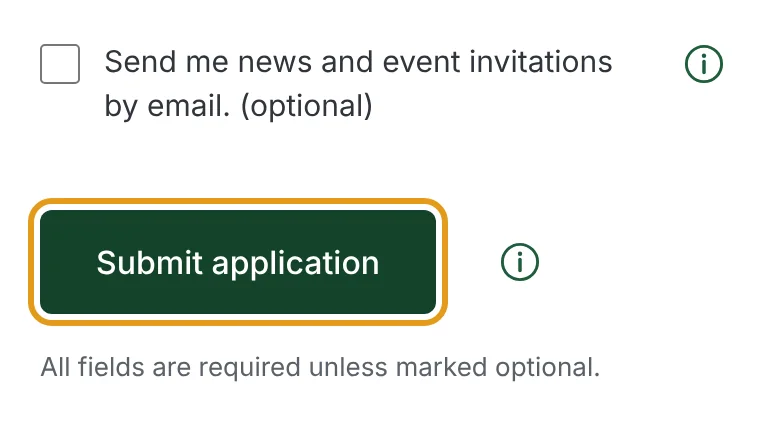
Example on a phone -
Step 7
You are done
A thank-you page confirms that your application has been sent. The committee members who handle membership will review it and reply by email, then send your membership ID card.
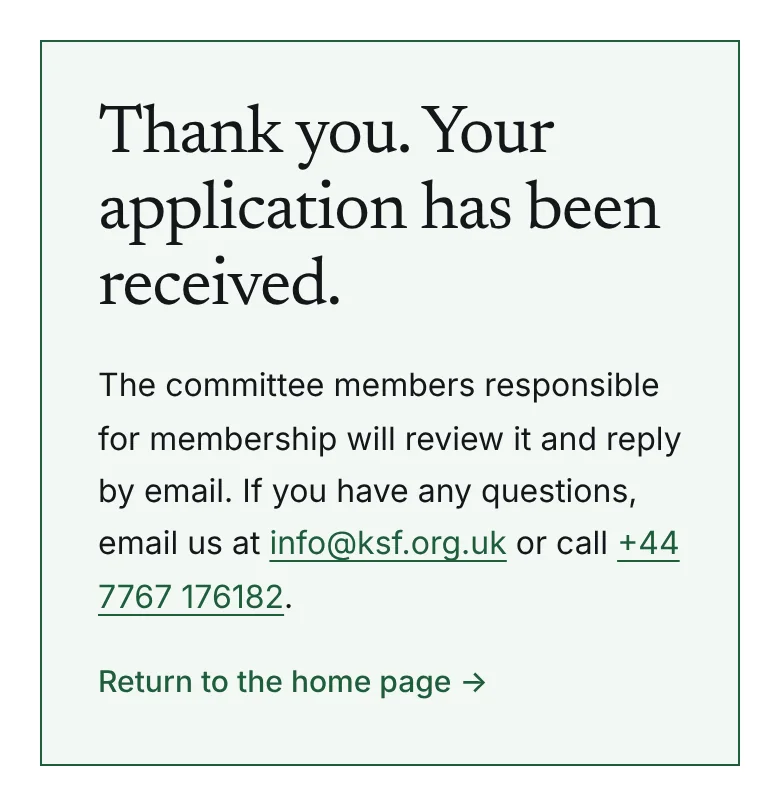
Example on a phone
Need help?
If you get stuck, email us at info@ksf.org.uk or call +44 7767 176182 and we will help you complete your application.
Your details are sent only to the committee members who handle membership. Read our Privacy Policy.